SilverSingles on mobile

SilverSingles App Australia — Dating on iPhone and Android

Use the SilverSingles app when you want to check profiles or messages away from a computer; use the website when a larger screen or keyboard makes a longer task more comfortable. Existing members can use the same account on supported devices, so installing the app is not a reason to create a second profile. Before downloading, decide what notifications may show on your phone and identify who would manage any subscription bought through an app store.

Store links open in a new tab. Availability, compatibility and store disclosures can change.

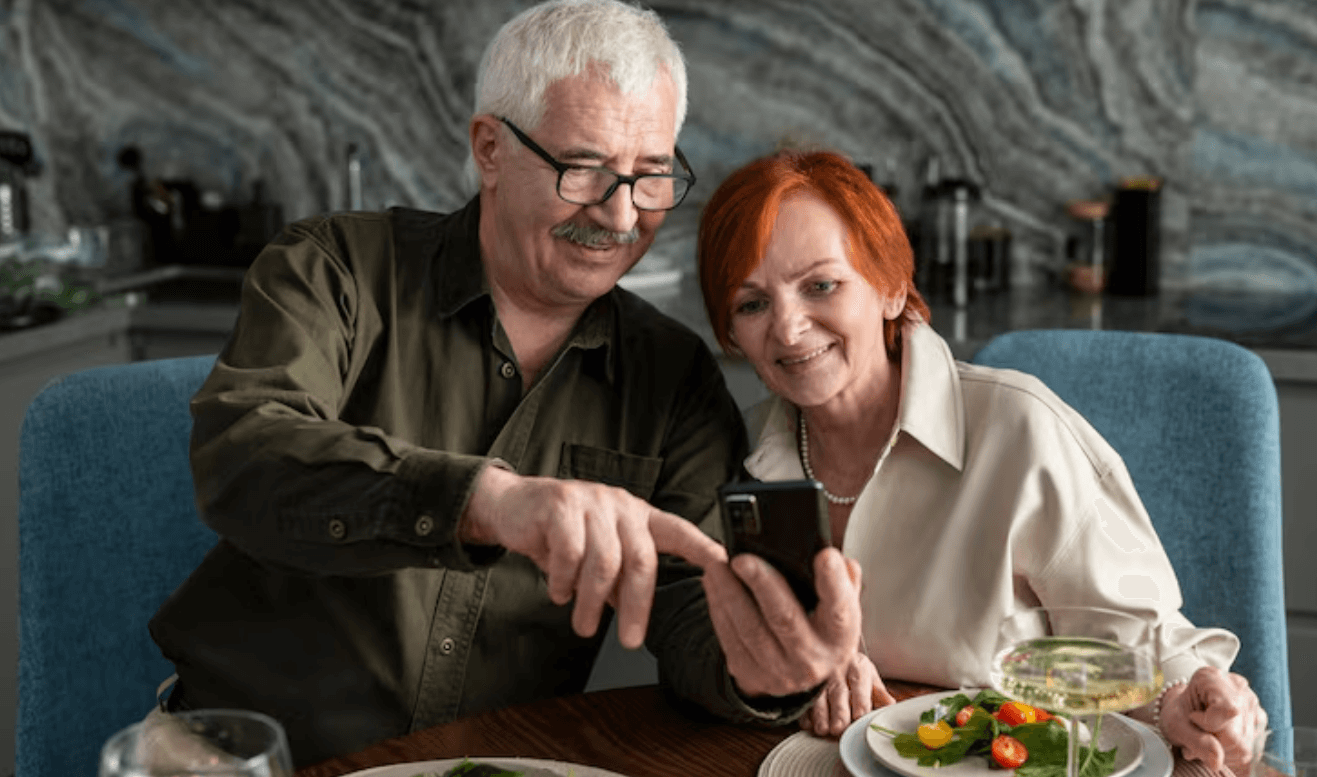
Two older adults looking at a smartphone together

Start with the task

Should You Use the SilverSingles App or the Website?

Neither screen is automatically better. The useful question is simpler: which device makes the task easier for you right now?

01

Use the app for short, timely checks

  • Read a new message when you are away from your computer.
  • Review a profile when you have a few quiet minutes.
  • Receive push alerts after choosing what the phone may display.
  • Return to your account without starting a second profile.
02

Use the website for longer, careful tasks

  • Read detailed profiles on a larger display.
  • Write a longer message with a full keyboard.
  • Review account details when more screen space feels clearer.
  • Use the service without installing another app.
03

Use both when your routine changes

Check a message on your phone, then continue later on a computer. The value is continuity, not choosing one device forever.

Account tasks on mobile

What Can You Do From the SilverSingles App?

Current product material supports the everyday mobile tasks that matter most: access your profile, review other profiles, read and send messages within the permissions of your membership, and manage app push alerts. Reporting controls are also described in current mobile guidance.

01Open your profile

Review the account information attached to your existing login.

02Read profiles

Use shorter phone sessions when a profile deserves another look.

03Use messages

Read or reply according to the access included with the account.

04Control alerts

Decide whether app push notifications are useful on that device.

Same account, different layout

The Account Can Be the Same Even When the Screen Looks Different

Mobile navigation may place messages, profile controls, notifications and account tools somewhere different from the desktop website. That does not create a different account. Because app layouts change, durable guidance is more useful than a tap-by-tap route that may be out of date after the next release: look for the current menu label that matches the task.

A phone can reveal more than a browser tab

Decide What SilverSingles Can Show on Your Phone

Push notifications are app alerts. Email notifications go to the address registered with the account. Current SilverSingles help says email-notification choices are not managed inside the iPhone or Android app, while push notifications can be managed in the app.

Your phone also has its own notification controls. SilverSingles does not decide every lock-screen detail: iOS or Android may control whether a preview appears, whether the app name is visible, whether a sound plays and whether the icon carries an unread badge.

PushApp alert on the phone
EmailMessage sent to the registered inbox
Before you allow alerts

Check four phone settings

  • Lock screen

    Should alerts appear before the phone is unlocked?

  • Preview

    Should any message text be visible?

  • Sound

    Do you want an audible alert?

  • Badge

    Should the app icon show an unread count?

The exact labels depend on the current iOS or Android version.

Shared and temporary devices

Using Someone Else’s Phone or Tablet Changes the Logout Decision

If the phone or tablet is borrowed, shared or temporary, use the app’s current Log Out control after finishing. That helps prevent the next person who opens the app on that device from returning to the signed-in account.

Closing the app

Stops the visible session for now

Swiping an app away or returning to the home screen does not necessarily end the signed-in session.

Logging out

Ends access on that device

Use this after a borrowed phone, temporary tablet or replacement device is no longer in your control.

Read the current store, not a stale table

Read Apple and Google Privacy Disclosures Before Installing

Both stores display information supplied by the app developer, but they organise it differently. Use the current listing to understand the declaration; do not treat a store label as a complete guarantee about every possible data flow.

Apple App Store

App Privacy groups data by linkage and purpose

The Australian listing currently separates data used to track you, data linked to you and data not linked to you. Its declaration includes identifiers, contact information, user content and diagnostics across those groups. Apple states that the developer supplied this information and that Apple has not verified it.

Google Play

Data Safety summarises collection and handling

The Australian listing currently says the app may collect location, personal information and other data types. It also displays developer-provided statements about sharing, encryption in transit and data-deletion requests. Google notes that practices can vary by use, region and age, and that the developer may update the declaration.

Why the page does not reproduce every data category

App features and developer declarations can change. The live store listing is the better source for the current privacy details, compatibility, version and purchase information.

Start with the receipt

Before Paying in the App, Check Who Will Manage the Subscription

The SilverSingles account may be the same, but the organisation that bills you can change the renewal, cancellation and support route. Do not assume website, Apple and Google purchases have identical prices, terms or refund handling.

First questionWho sent the receipt?
Website

Use the current account billing route

Review the account and support instructions shown for a purchase made on the website.

Apple

Use the purchasing Apple Account

Apple’s current instructions place App Store subscription management in that Apple Account’s Subscriptions settings.

Google Play

Use the purchasing Google Account

Google’s current instructions require the account that holds the subscription in Google Play.

Four actions, four outcomes

Deleting the App Is Not the Same Decision as Deleting Your Account

Decide what result you want before tapping anything. Removing an app, ending a device session, removing an account and stopping a renewal solve different problems.

01Remove the app
Result: the application leaves that device.
The account and any separately billed subscription are not automatically cancelled. Google Play explicitly warns that uninstalling an app does not cancel its subscription.
02Log out
Result: the signed-in session ends on that device.
Use this when another person may use the phone or tablet. The account remains available for a later sign-in.
03Delete the account
Result: starts the service’s account-removal process.
Follow the current account instructions. Do not assume this also stops a subscription billed separately by Apple or Google.
04Cancel the subscription
Result: stops renewal through the billing channel.
Use the website, Apple Account or Google Account identified by the purchase record. Access may continue for a paid period under the current terms.

A two-minute pre-download check

Check Your Device Before You Download

iPhone: open the App Store listing on the device and read the current Compatibility section.

Android: open Google Play while signed in on the intended device and use its compatibility result.

Version numbers, app size and minimum operating-system requirements are intentionally not fixed here because they change.

Five mobile answers

SilverSingles App Questions

Do I need a new SilverSingles account for the app?

No. Current SilverSingles mobile guidance says an existing member can use the same login details as the desktop profile. Creating another account could split your activity between two profiles. Install the app, use the existing credentials and contact the service’s support route if those details no longer work.

Can I use SilverSingles on both my phone and computer?

Yes, current product guidance supports using existing credentials across devices. A phone is useful for brief checks, while a larger screen may feel more comfortable for detailed reading or longer writing. The interface can look different on each device even though the account is the same.

Can I turn off SilverSingles push notifications?

Current SilverSingles help says push notifications can be managed in the app. Your iPhone or Android settings may also control lock-screen appearance, previews, sound and badges. Email preferences are separate and, according to current help, are not managed inside the mobile apps.

If I pay through Apple or Google Play, where do I manage the subscription?

Use the account belonging to the store that processed the payment. Apple-billed subscriptions are managed through the purchasing Apple Account; Google Play purchases require the purchasing Google Account. If you are unsure, find the receipt first instead of checking every channel at random.

Does deleting the app delete my SilverSingles account?

No. Removing the app takes it off the device; it is not the same as using the account-deletion process. It also should not be treated as subscription cancellation. Google Play explicitly states that uninstalling an app does not cancel its subscription, so confirm billing separately.

Your screen can change with the task

Use SilverSingles on the Device That Fits You

Use the website when a larger screen feels more comfortable, or use the app when mobile access fits the day. Existing account details can keep the experience connected across supported devices.